Operation Manual
USB-C Connector Electrical Input Requirements
FOSSA Nexus features a USB-C power input interface designed for continuous operation and battery charging. To ensure safe and reliable performance, the following electrical requirements must be met:
Input Voltage: 5 Volts (DC)
Minimum Current Supply: Greater than 1 Ampere
Minimum Power Requirement: 5 Watts
This power input serves two primary functions:
-
Continuous Power Supply: Enables uninterrupted operation of the device when connected to a stable power source.
-
Battery Charging: Recharges the internal battery system when the device is not in Transport Mode or when charging is required.
⚠ Important: Always use certified USB-C power adapters and cables capable of delivering the specified voltage and current. Using underpowered or non-compliant accessories may result in charging failures, reduced performance, or potential damage to the device.
LED Indicator
The LED indicator on the FOSSA Nexus has three main functions: it indicates the current operating state of the device, displays error codes, and provides access to several device operation modes through the button.
Device State
During normal operation, the FOSSA Nexus displays a steady color indicating its current state. There are three possible states:
- Cellular Connected: Green
- Wi-Fi Access Point Active: Purple
- Satellite Window Active: Blue
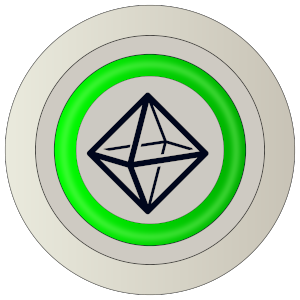


If multiple states are active simultaneously, the LED will smoothly transition between the corresponding colors in a continuous cycle.
Error Codes
If one or more errors are active, the normal status indication is interrupted every 10 seconds to display the corresponding error codes.
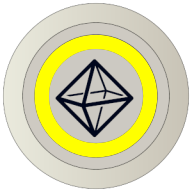
Each error code is indicated by a burst of five rapid LED flashes. Different colors identify different errors:
- Red burst: The satellite modem is not ready.
- Yellow burst: The device was unable to obtain a GNSS fix.

Button Operation
Turn On the Device
When delivered, the FOSSA Nexus is shipped in Transport Mode. In this mode, the device remains in an ultra-low-power state, with all systems powered off to ensure safe transportation and preserve battery life.
To turn on the FOSSA Nexus while it is in Transport Mode, press and hold the button for approximately 7 seconds. The LED will flash blue to indicate that the required press duration has been reached. The device will be activated when the button is released.
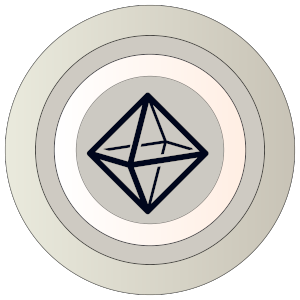
To indicate that the device is active, the LED will flash two times in white.
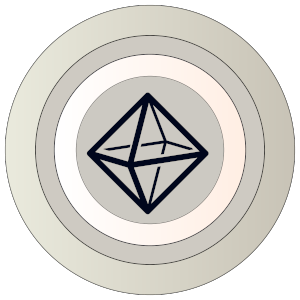
Show Status
When the device is powered on, a short press of the button will cause the LED to flash three times in light blue, indicating that the device is active.
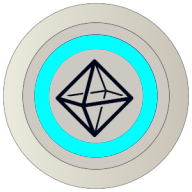
Enable Wi-Fi Access Point
When the device is powered on, press and hold the button. The LED will initially turn off.
Continue holding the button until the LED turns purple, which occurs after approximately 5 seconds. Release the button while the LED is purple to enable the Wi-Fi Access Point.
Turn Off the Device
When the device is powered on, press and hold the button. The LED will initially turn off. After approximately 5 seconds, the LED will turn purple.
Continue holding the button until the LED turns off again. If the button is released after the purple indication has turned off, the device will shut down and enter Transport Mode.
To indicate that Transport Mode has been successfully activated, the LED will flash three times in white.
While in Transport Mode, the device will not respond to short button presses.
FOSSA Nexus Installation Guidelines
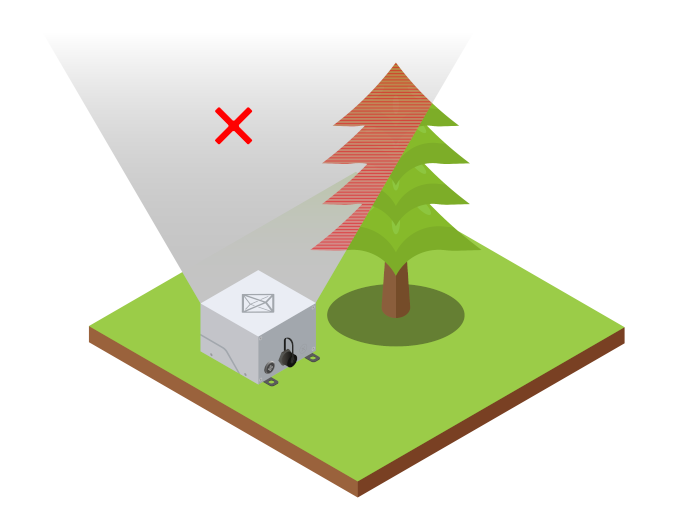
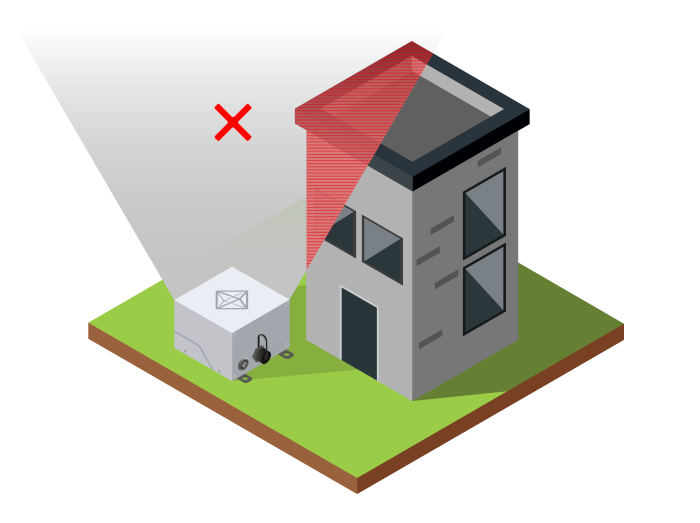
Place the FOSSA Nexus device with the FOSSA logo facing the sky, in an open area with no nearby buildings, trees, or other obstacles. This ensures a clear view of the sky and improves the connection with the satellites, resulting in a higher packet success rate.