Register your Device
The FOSSA IoT Hub will allow you to create and manage your organization, register and group your devices, and even define endpoints to receive the information sent by them.
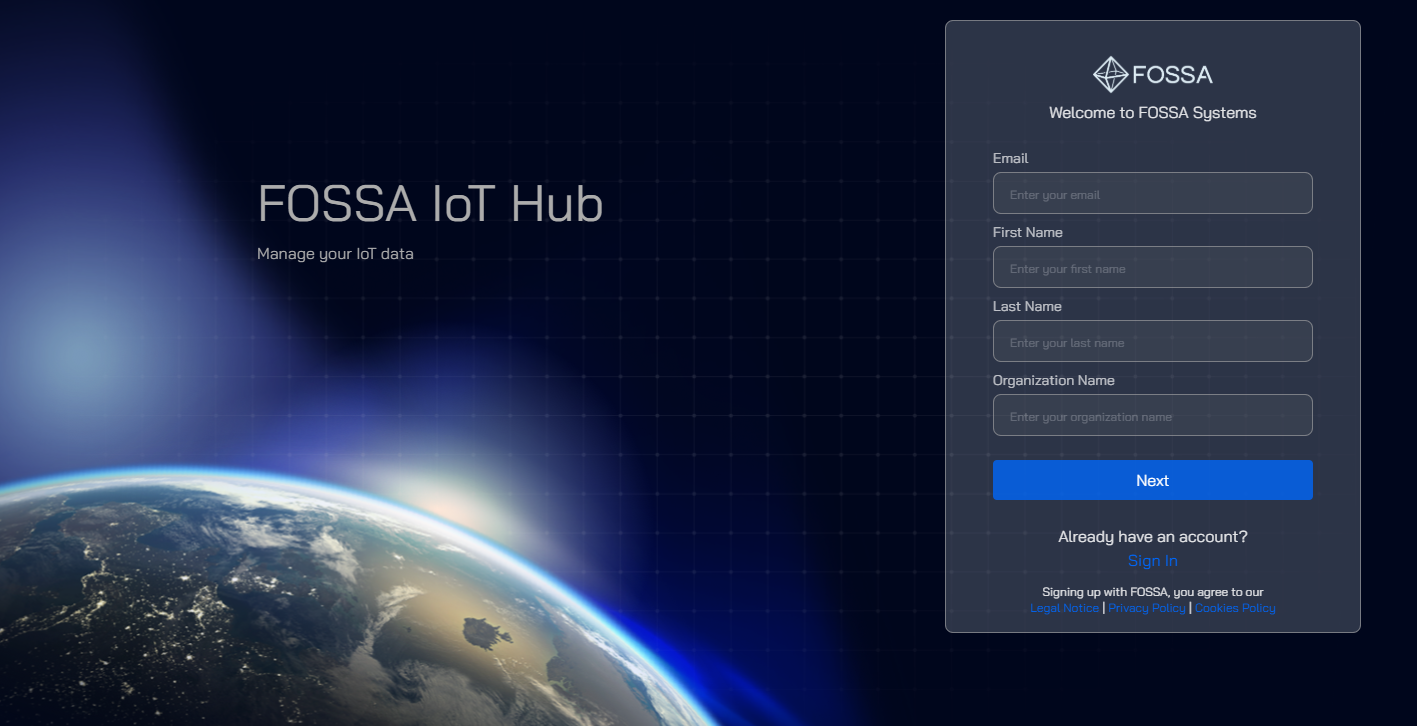
1. Register your organization on the FOSSA IoT Hub
The first step to get started is to register your organization on the FOSSA IoT Hub. Access the Sign up page and fill in your company details.
2. Validate your organization
After your organization is registered, you will receive an email to validate it. Click the link in the email to verify your identity. After this, FOSSA will review your registration and activate your account within the next few hours. You will receive an email letting you know that your organization is active and ready.
3. Create applications
Once your organization is active, you will be able to log in to your FOSSA IoT Hub and begin creating applications and registering your first device. Every device should be registered with an application. By default, the Hub already has a default application where you can register devices.
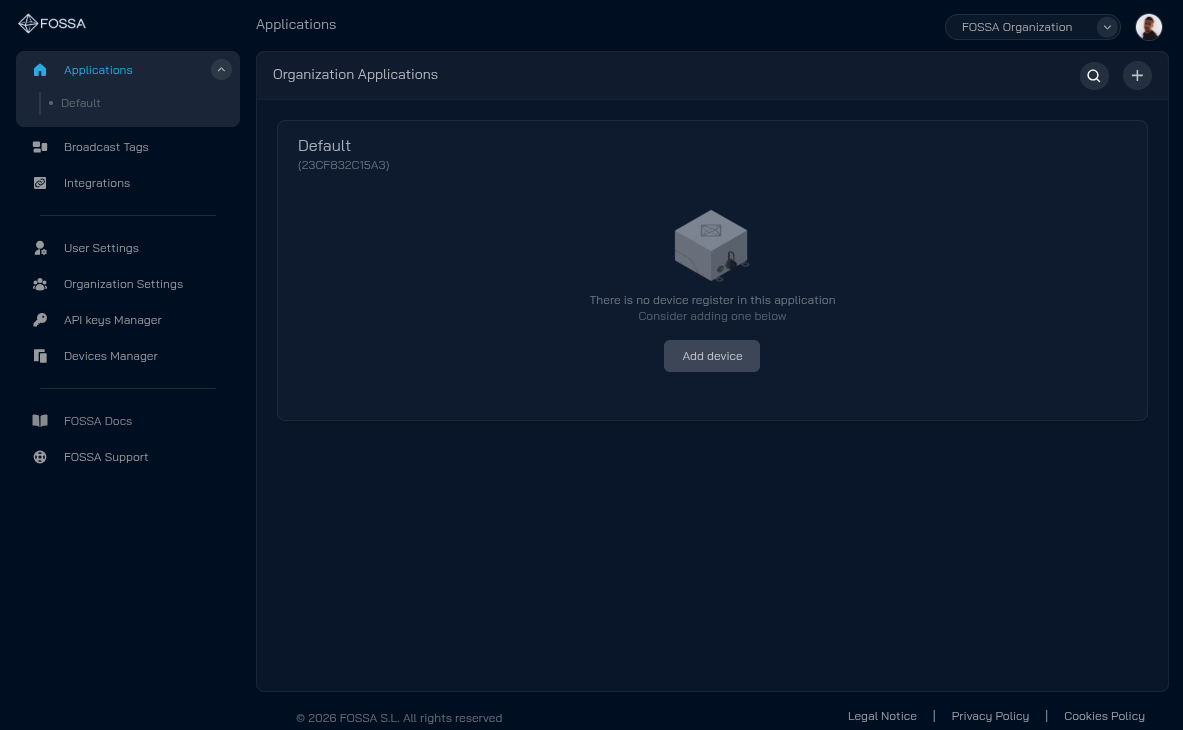
However, additional applications can be created by clicking  and selecting
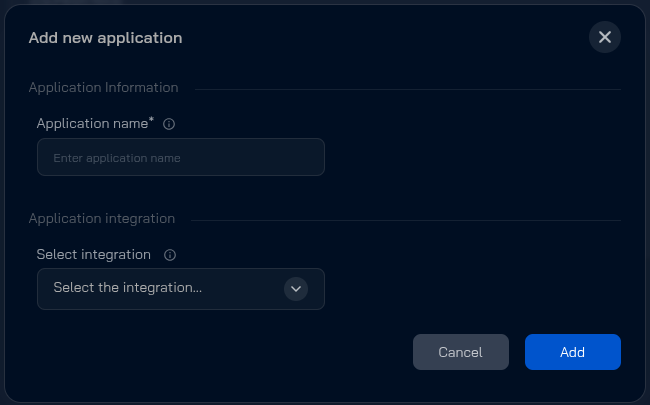
 Create application.
You will need to provide a name. If you have already configured an integration, you can also select and associate it with the application. The image below shows the Create Application dialog box.
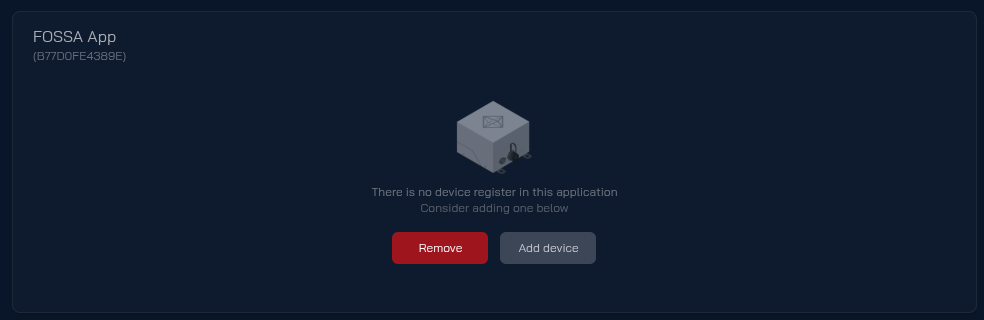
Once the new application is created, it will appear on the Applications page, where you can add or remove devices from it.
4. Device registration
There are two ways to register devices on the FOSSA IoT Hub. You can either add them directly to an application by clicking inside a specific application page, or by clicking on the main Applications page and selecting Register device.
You will need the MAC address and the serial number located on the box that came with your new device.
You can use the help button next to each field if you are not sure how to enter the required information.
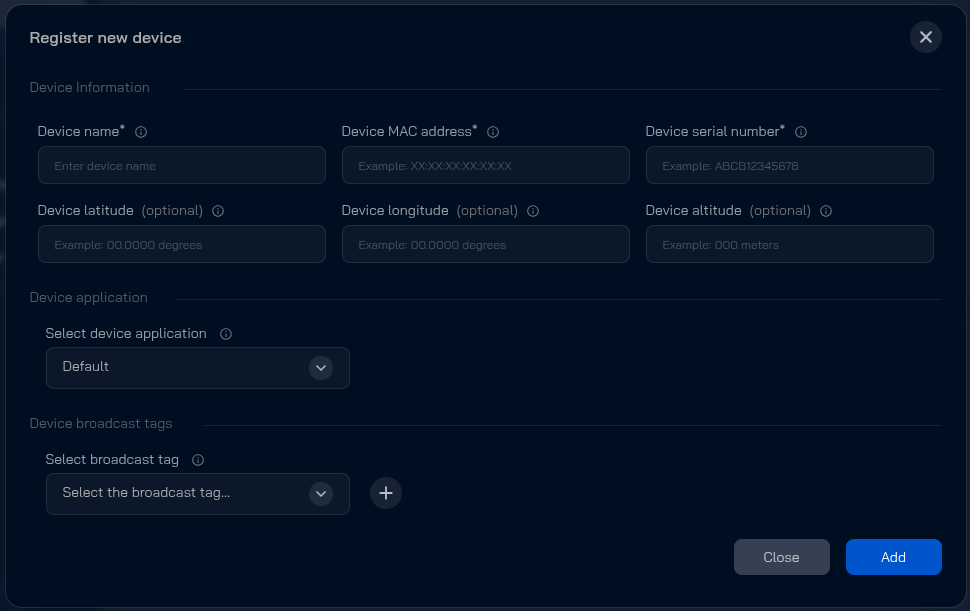
Note: Take into consideration that changes in the FOSSA IoT Hub, like GPS coordinates, will not be automatically propagated to the device. A manual update will be needed.
5. Device Integrations
Integrations provide a way to connect devices to your final applications or cloud data ingestion services. You can add one integration to an application, and all data generated by the devices in that application will be sent through the configured integration.
New integrations can be added on the integrations page, and they consist of a name (e.g., "Production Server") and an HTTP/S endpoint (e.g., https://production.example.com/sensors).
All data generated by the devices in an application and sent through the FOSSA Network will be routed to the configured integration.
You can find more information on how to properly configure an integration in the Data Retrieval section.
6. Send IoT Messages
IoT messages are data sent from the FOSSA IoT Hub to your devices. Messages can be sent either to a specific device or to multiple devices within an application.
There are two ways to send a message:
- To a specific device: You can send a message directly from the device page by clicking the button.
- To multiple devices: You can broadcast a message to all devices registered to a specific application by clicking the button on the application page.
When sending a message, the following dialog will be displayed:
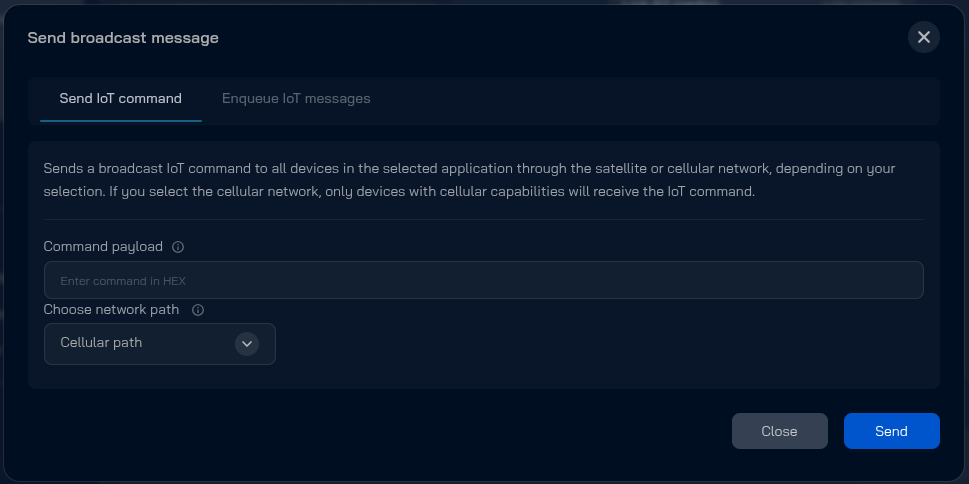
You can build any message for your device. However, due to cryptographic restrictions, the message must be either 16 or 32 bytes long. Padding can be added to meet these length requirements.
Messages must be specified in hexadecimal format (e.g., BEEF002F).
Messages can be sent using different network paths: Satellite Path or Cellular Path. The desired network path can be selected when sending the message.
Messages are not sent instantly. They are scheduled within the satellite network and will be downlinked to the device during the next available pass. Depending on the device's geographical location and network availability, this process may take a few minutes or several hours.
When sending a message from an application, the message can be delivered to all devices registered to that application. This allows you to send the same message to a group of devices instead of sending it individually to each device.
7. Bulk and automated actions
If you want to automate device registration or send commands automatically from your company systems, you can use the programmatic REST API.
Go to the API Keys Manager section on the FOSSA IoT Hub and create an API key to authenticate your scripts.
Refer to the FOSSA IoT Hub API documentation for more information. Quotas and restrictions might apply. Please contact FOSSA for more details.